Introduction
Screen recording software allows users to capture on-screen activity along with audio, webcam input, and system interactions. These tools are widely used for creating tutorials, recording gameplay, delivering presentations, troubleshooting issues, and producing educational or marketing content.
As video continues to dominate digital communication, screen recorders have evolved into powerful content creation platforms. Modern tools now include AI-assisted editing, automatic captions, cloud sharing, and multi-source recording capabilities. The choice of software significantly impacts workflow efficiency—especially since editing often takes much longer than recording itself.
Common use cases include:
- Creating tutorials and online courses
- Recording gameplay and live sessions
- Producing product demos and walkthroughs
- Internal team communication and async updates
- Capturing bugs and technical issues
Key evaluation criteria buyers should consider:
- Recording quality (resolution, FPS, compression)
- Audio capture (mic + system audio separation)
- Built-in editing capabilities
- Performance impact (CPU/GPU usage)
- Multi-source recording (screen, webcam, overlays)
- Export formats and sharing options
- AI features (auto captions, trimming, summaries)
- Ease of use vs advanced control
- Platform compatibility
Best for: Content creators, educators, developers, gamers, marketers, and remote teams.
Not ideal for: Users who only need simple screenshots or very basic clips—lightweight tools or built-in OS recorders may suffice.
Key Trends in Screen Recording Software
- AI-powered editing: Auto captions, silence removal, and summaries
- Cloud-based sharing: Instant links and team collaboration
- Lightweight performance optimization: Lower CPU usage for gaming and long sessions
- Multi-source capture: Screen + webcam + overlays simultaneously
- 4K and high-FPS recording: Especially for gaming and professional content
- Built-in video editing suites: Reducing dependency on external tools
- Browser-based recorders: No installation required
- Async communication tools: Replacing meetings with quick recordings
- Automation workflows: Scheduled recording and smart trimming
- Cross-platform compatibility: Desktop + web + mobile support
How We Selected These Tools (Methodology)
- Evaluated market adoption among creators, educators, and developers
- Assessed recording performance and output quality
- Reviewed editing and post-production capabilities
- Considered ease of use for beginners vs advanced users
- Included tools for different use cases (gaming, tutorials, business)
- Analyzed CPU/GPU efficiency and system impact
- Evaluated integration with sharing and collaboration tools
- Reviewed community support and documentation
- Balanced free, freemium, and premium solutions
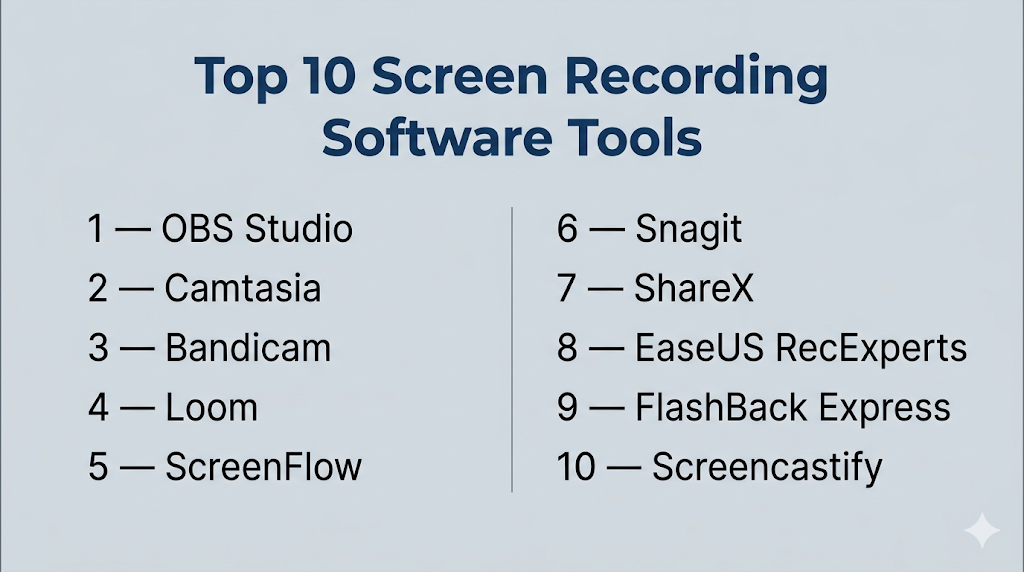
Top 10 Screen Recording Software Tools
#1 — OBS Studio
Short description: A free, open-source screen recorder and streaming tool offering professional-grade control and flexibility.
Key Features
- Multi-source recording (screen, webcam, overlays)
- Real-time audio/video mixing
- Scene switching and transitions
- Plugin support and customization
- Hardware encoding for performance
- Live streaming integration
Pros
- Completely free and powerful
- Highly customizable
Cons
- Steep learning curve
- No built-in editing tools
Platforms / Deployment
Windows / macOS / Linux
Local
Security & Compliance
Not publicly stated
Integrations & Ecosystem
Extensive plugin ecosystem and integrations.
- Streaming platforms
- Custom plugins
- Developer extensions
Support & Community
Massive global community with extensive tutorials and guides.
#2 — Camtasia
Short description: An all-in-one screen recorder and video editor designed for tutorials and professional content creation.
Key Features
- Screen + webcam recording
- Timeline-based video editor
- Annotations and cursor effects
- Built-in templates and assets
- Audio editing tools
- Drag-and-drop interface
Pros
- Excellent editing capabilities
- Ideal for instructional content
Cons
- Expensive
- Resource-intensive
Platforms / Deployment
Windows / macOS
Local
Security & Compliance
Not publicly stated
Integrations & Ecosystem
Integrated editing ecosystem.
- Media libraries
- Export tools
Support & Community
Strong documentation and professional user base.
#3 — Bandicam
Short description: A lightweight screen recorder optimized for high-performance capture and gaming.
Key Features
- 4K recording support
- High compression with small file sizes
- Real-time drawing tools
- Game recording mode
- Long-duration recording
- Multiple recording modes
Pros
- Low CPU usage
- Stable performance
Cons
- Limited editing tools
- Windows-focused
Platforms / Deployment
Windows
Local
Security & Compliance
Not publicly stated
Integrations & Ecosystem
Focused on recording workflows.
- Export formats
- Basic tools
Support & Community
Moderate community support.
#4 — Loom
Short description: A cloud-based screen recording tool designed for quick sharing and team communication.
Key Features
- Instant recording and sharing
- Webcam + screen capture
- Cloud storage
- Viewer analytics
- Collaboration tools
Pros
- Extremely easy to use
- Fast sharing
Cons
- Limited advanced editing
- Internet dependency
Platforms / Deployment
Web / Windows / macOS / iOS / Android
Cloud
Security & Compliance
Not publicly stated
Integrations & Ecosystem
Strong collaboration integrations.
- Team tools
- Sharing platforms
Support & Community
Popular among remote teams.
#5 — ScreenFlow
Short description: A macOS-exclusive screen recorder with advanced editing capabilities.
Key Features
- High-quality screen recording
- Timeline-based editing
- Motion graphics
- Audio editing tools
- Export presets
Pros
- Excellent for Mac users
- Strong editing tools
Cons
- macOS-only
- Paid software
Platforms / Deployment
macOS
Local
Security & Compliance
Not publicly stated
Integrations & Ecosystem
Mac-focused ecosystem.
- Export tools
- Media libraries
Support & Community
Strong Mac creative community.
#6 — Snagit
Short description: A simple screen capture and recording tool focused on quick visuals and documentation.
Key Features
- Screen recording and screenshots
- Annotation tools
- Easy sharing
- Templates
- Basic editing
Pros
- Easy to use
- Great for documentation
Cons
- Limited advanced features
- Not suited for long recordings
Platforms / Deployment
Windows / macOS
Local
Security & Compliance
Not publicly stated
Integrations & Ecosystem
Supports productivity workflows.
- Documentation tools
- Export options
Support & Community
Strong user base.
#7 — ShareX
Short description: A free, open-source screen recorder with advanced automation and customization.
Key Features
- Screen recording and capture
- Workflow automation
- File sharing
- Custom scripts
- Multiple export options
Pros
- Free and powerful
- Highly customizable
Cons
- Complex interface
- Windows-only
Platforms / Deployment
Windows
Local
Security & Compliance
Not publicly stated
Integrations & Ecosystem
Developer-friendly ecosystem.
- Automation tools
- Scripts
Support & Community
Active open-source community.
#8 — EaseUS RecExperts
Short description: A user-friendly screen recorder with built-in tools for business and professional use.
Key Features
- Screen + webcam recording
- Scheduled recording
- Built-in editor
- GIF creator
- Audio capture
Pros
- Easy to use
- Good for business use
Cons
- Limited advanced features
- Paid tiers for full functionality
Platforms / Deployment
Windows / macOS
Local
Security & Compliance
Not publicly stated
Integrations & Ecosystem
Basic integrations.
- Export tools
- Media sharing
Support & Community
Moderate support resources.
#9 — FlashBack Express
Short description: A free screen recorder offering clean recording without watermarks.
Key Features
- Screen recording
- Webcam overlay
- Audio recording
- Export formats
- No watermark
Pros
- Free and simple
- No watermarks
Cons
- Limited editing
- Basic features
Platforms / Deployment
Windows
Local
Security & Compliance
Not publicly stated
Integrations & Ecosystem
Basic ecosystem.
- Export tools
Support & Community
Moderate support.
#10 — Screencastify
Short description: A browser-based screen recorder ideal for educators and quick recordings.
Key Features
- Chrome extension
- Screen + webcam recording
- Google Drive integration
- Easy sharing
- Annotation tools
Pros
- No installation needed
- Easy for students and teachers
Cons
- Limited advanced features
- Browser dependency
Platforms / Deployment
Web (Chrome)
Cloud
Security & Compliance
Not publicly stated
Integrations & Ecosystem
Strong education integrations.
- Google Workspace
- Classroom tools
Support & Community
Popular in education sector.
Comparison Table (Top 10)
| Tool Name | Best For | Platform(s) Supported | Deployment | Standout Feature | Public Rating |
|---|---|---|---|---|---|
| OBS Studio | Advanced users | Multi-platform | Local | Free + powerful | N/A |
| Camtasia | Tutorials | Win/macOS | Local | Built-in editor | N/A |
| Bandicam | Gaming | Windows | Local | Low CPU usage | N/A |
| Loom | Teams | Multi-platform | Cloud | Instant sharing | N/A |
| ScreenFlow | Mac users | macOS | Local | Editing tools | N/A |
| Snagit | Documentation | Win/macOS | Local | Simple capture | N/A |
| ShareX | Automation | Windows | Local | Workflow automation | N/A |
| RecExperts | Business use | Multi-platform | Local | Ease of use | N/A |
| FlashBack Express | Free users | Windows | Local | No watermark | N/A |
| Screencastify | Education | Web | Cloud | Browser-based | N/A |
Evaluation & Scoring of Screen Recording Software
| Tool Name | Core (25%) | Ease (15%) | Integrations (15%) | Security (10%) | Performance (10%) | Support (10%) | Value (15%) | Weighted Total |
|---|---|---|---|---|---|---|---|---|
| OBS Studio | 10 | 5 | 9 | 5 | 9 | 10 | 10 | 8.7 |
| Camtasia | 9 | 8 | 8 | 5 | 7 | 9 | 7 | 8.1 |
| Bandicam | 8 | 9 | 6 | 5 | 10 | 7 | 8 | 8.0 |
| Loom | 7 | 10 | 8 | 5 | 7 | 8 | 9 | 7.9 |
| ScreenFlow | 8 | 8 | 7 | 5 | 8 | 7 | 7 | 7.7 |
| Snagit | 7 | 9 | 7 | 5 | 7 | 8 | 8 | 7.6 |
| ShareX | 8 | 6 | 8 | 5 | 8 | 7 | 10 | 7.8 |
| RecExperts | 7 | 9 | 7 | 5 | 7 | 7 | 8 | 7.5 |
| FlashBack | 6 | 9 | 5 | 5 | 7 | 6 | 9 | 7.2 |
| Screencastify | 6 | 10 | 7 | 5 | 6 | 7 | 8 | 7.1 |
How to interpret the scores:
- Higher scores indicate better balance across features
- Advanced users should prioritize performance and flexibility
- Beginners should prioritize ease of use
- Free tools often excel in value but lack polish
- Choose based on workflow and content goals
Which Screen Recording Software Tool Is Right for You?
Solo / Freelancer
- Best options: Loom, ShareX, OBS Studio
- Focus on simplicity and cost
SMB
- Best options: Camtasia, RecExperts
- Balanced editing and usability
Mid-Market
- Best options: ScreenFlow, Camtasia
- Need polished content creation
Enterprise
- Best options: Camtasia, OBS Studio
- Require scalability and production quality
Budget vs Premium
- Budget: OBS Studio, ShareX
- Premium: Camtasia, ScreenFlow
Feature Depth vs Ease of Use
- Advanced: OBS Studio, ShareX
- Easy: Loom, Snagit
Integrations & Scalability
- Strong: OBS, Loom
- Limited: FlashBack
Security & Compliance Needs
- Most tools: Not publicly stated
- Enterprises should validate internally
Frequently Asked Questions (FAQs)
What is screen recording software?
Software used to capture on-screen activity with audio and video.
Which tool is best for beginners?
Loom and Snagit are beginner-friendly.
Is OBS Studio free?
Yes, it is free and open-source.
Which tool is best for tutorials?
Camtasia is ideal due to editing features.
Can I record audio and screen together?
Yes, most tools support both.
Which tool is best for gaming?
Bandicam and OBS Studio are strong options.
Do I need editing software?
Some tools include editing; others require external tools.
Can I record in 4K?
Yes, tools like Bandicam support 4K recording.
Are browser-based tools reliable?
Yes, for basic use cases and quick sharing.
Can I share recordings instantly?
Yes, tools like Loom provide instant sharing links.
Conclusion
Screen recording software has become essential for modern communication, education, and content creation. Whether you need simple recordings or professional-grade production, there is a tool tailored to your needs.